User manual
NFC Padlock
User manual
Set up the EliteLock App, bind the padlock to a unit, and open and close it with your phone.
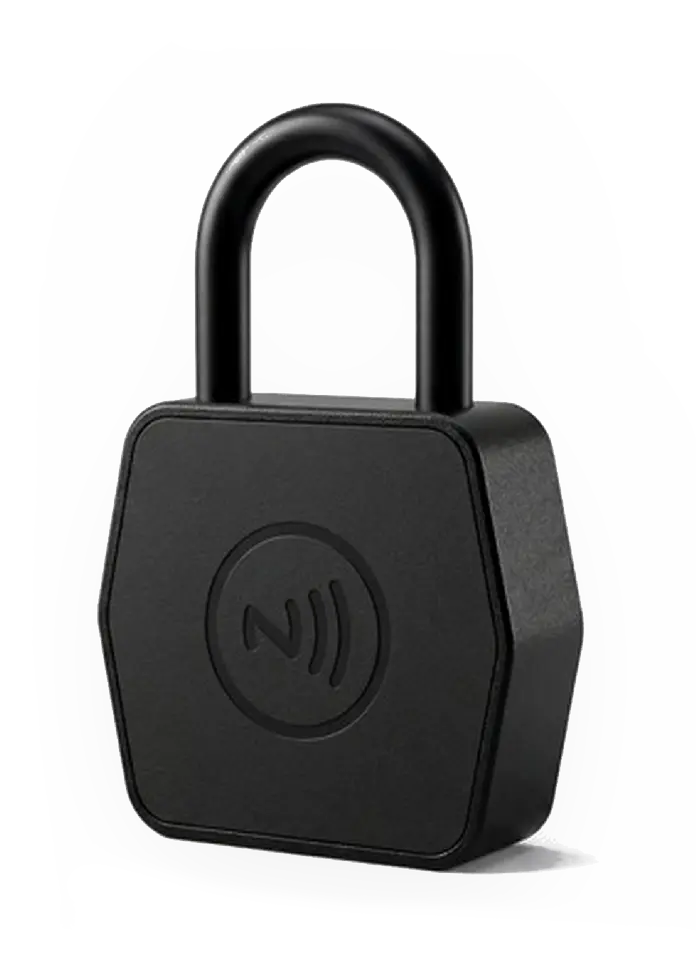 EliteLock NFC PadlockVersion 1.2
In the box
Check the contents
Check the package when you unpack the lock. Contact your supplier if anything is missing or damaged.
You will also need
- An NFC-enabled iPhone or Android phone with the EliteLock App.
- An EliteLock account with access to the unit.
- An internet connection to sign in and receive access updates.
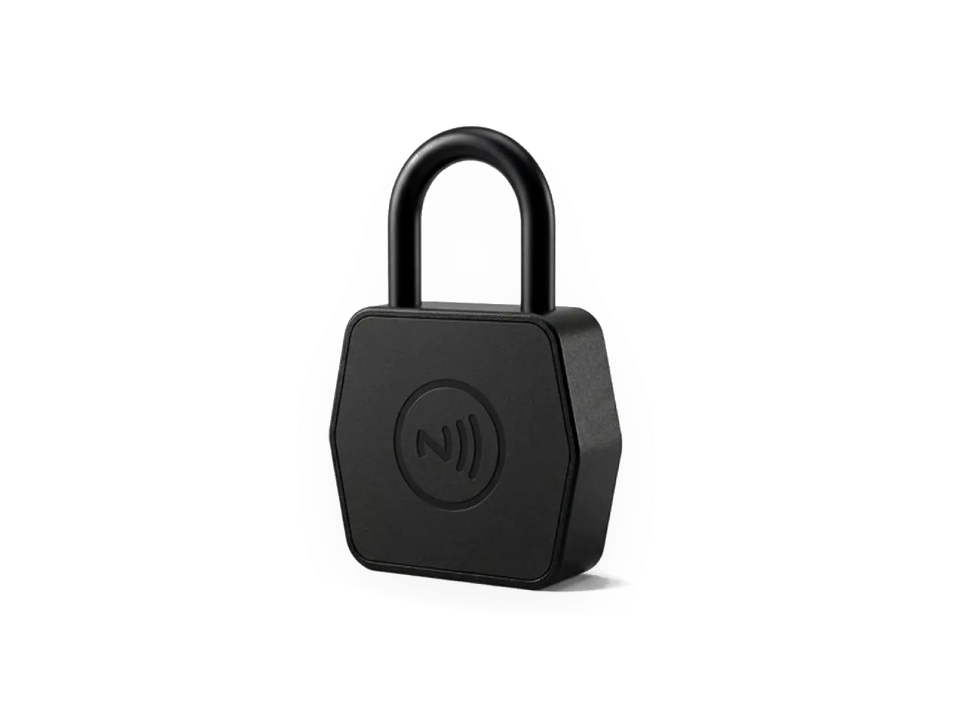
NFC padlock
× 1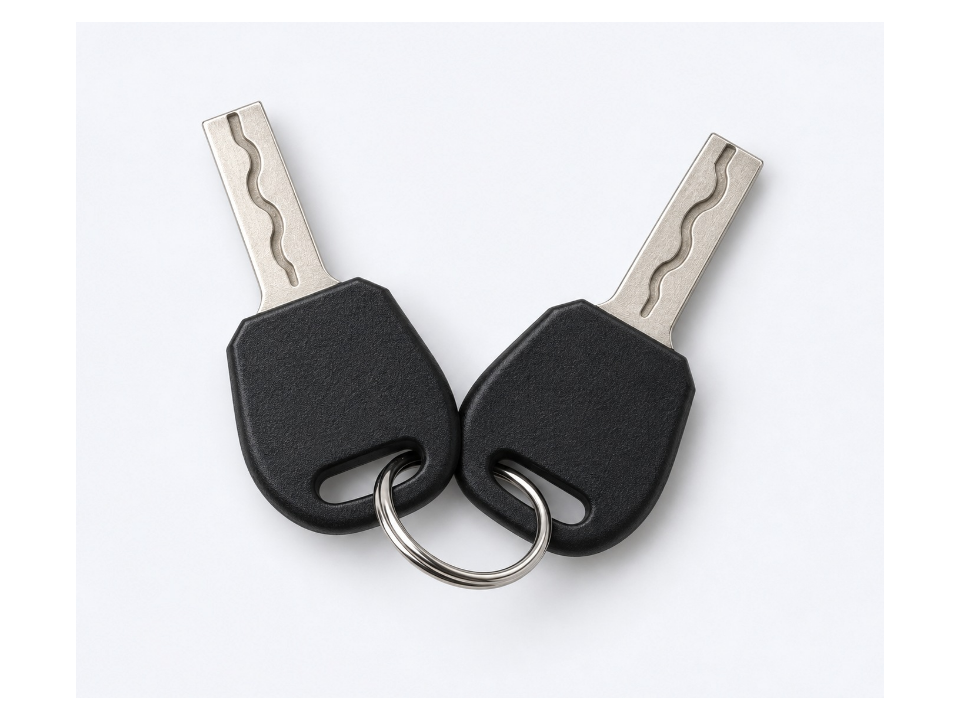
Mechanical key
× 2
Keep the mechanical keys secure. They open the lock without the App. Store them with the site operator, not on the unit.
Product overview
Know your padlock
The lock has no battery. Your phone powers it through the NFC area on the front face during each operation.
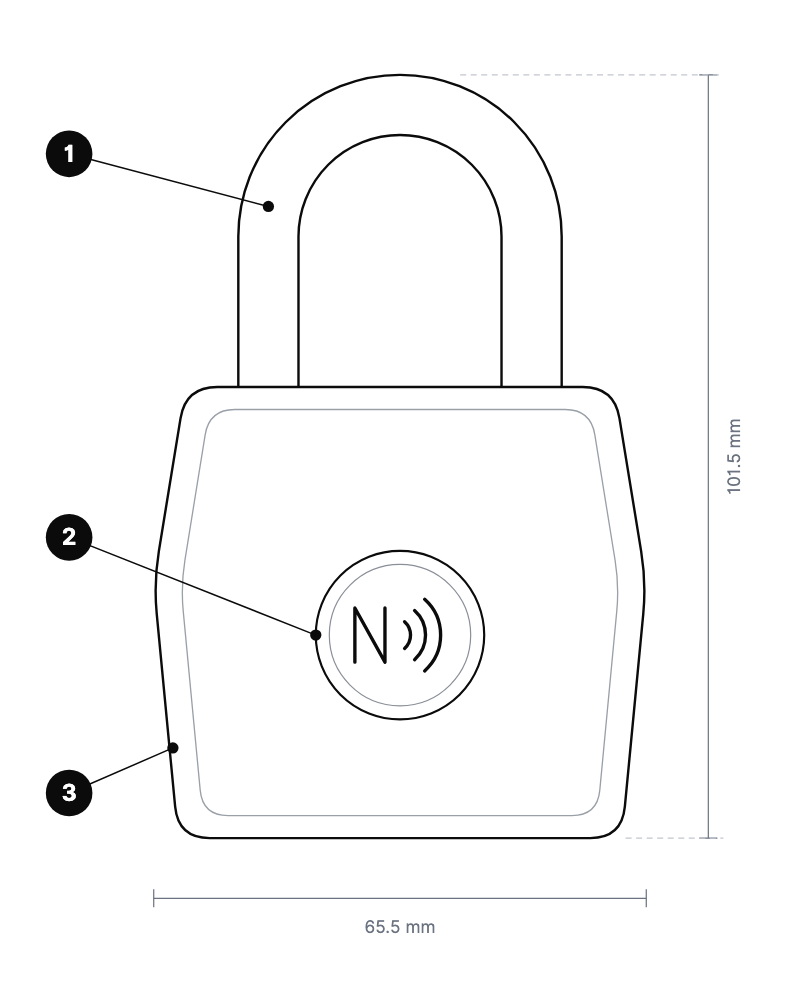
- 1Shackle8 mm steel
- 2NFC markHold your phone here
- 3Lock bodyZinc alloy
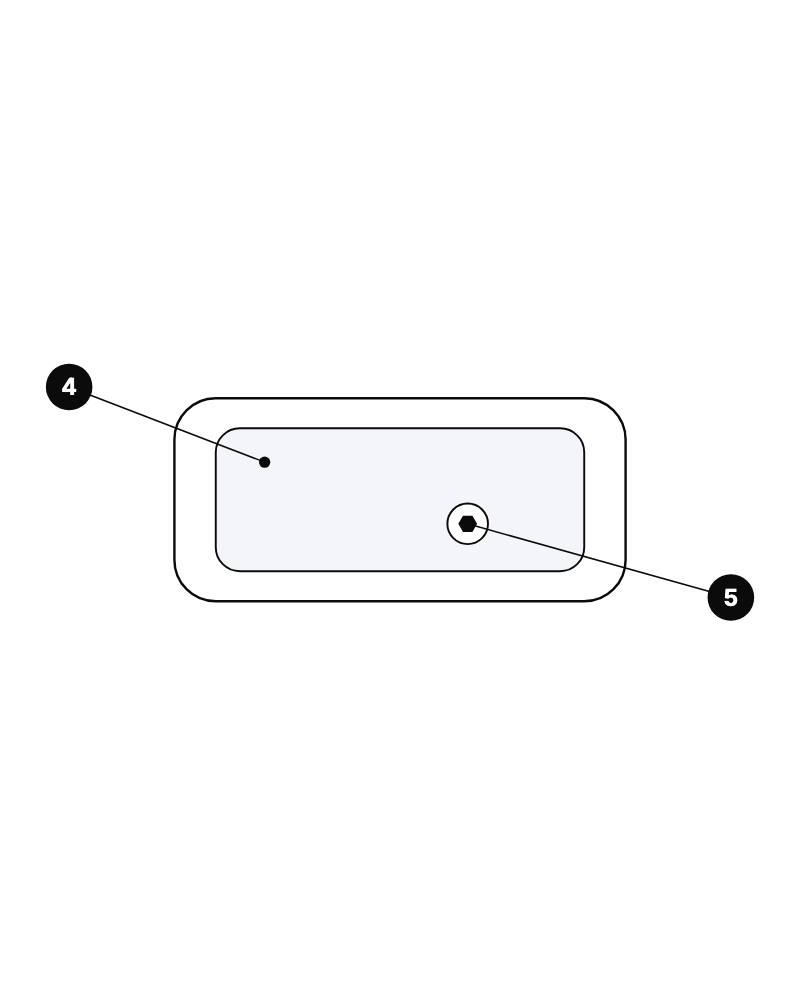
- 4Bottom coverCovers the key cylinder
- 5Hex screwHolds the cover
Specifications
Technical data
- Communication
- NFC
- Power supply
- Phone NFC field · no battery
- Unlock methods
- EliteLock App via NFC · mechanical key
- Supported phones
- NFC-enabled iPhone and Android
- Body material
- Zinc alloy · industrial plastic
- Shackle
- 8 mm steel
- Body dimensions
- 65.5 × 60 × 27 mm
- Overall height
- 101.5 mm
- Operating temperature
- −25 °C to +70 °C *
- Dust and water
- IP6X · IPX7 *
- Shackle pull strength
- 7.90 kN *
- Drop test
- 1.8 m · functional *
- Neutral salt spray
- 72 h · no red rust *
- In the box
- 1 padlock · 2 mechanical keys
* Results of third-party testing by Shanghai Global Testing Services Co., Ltd., report THZJ25050870206CN, 30 May 2025. Results apply to the submitted sample.
How it works
Your phone is the key
The site operator grants access in the EliteLock platform. Your phone powers the lock, sends the encrypted command and returns the record.
01
Authorize
The operator grants access to your account.
02
Tap
Hold your phone at the NFC mark.
03
Open
The lock checks access and releases.
04
Record
Each operation is logged to the unit.
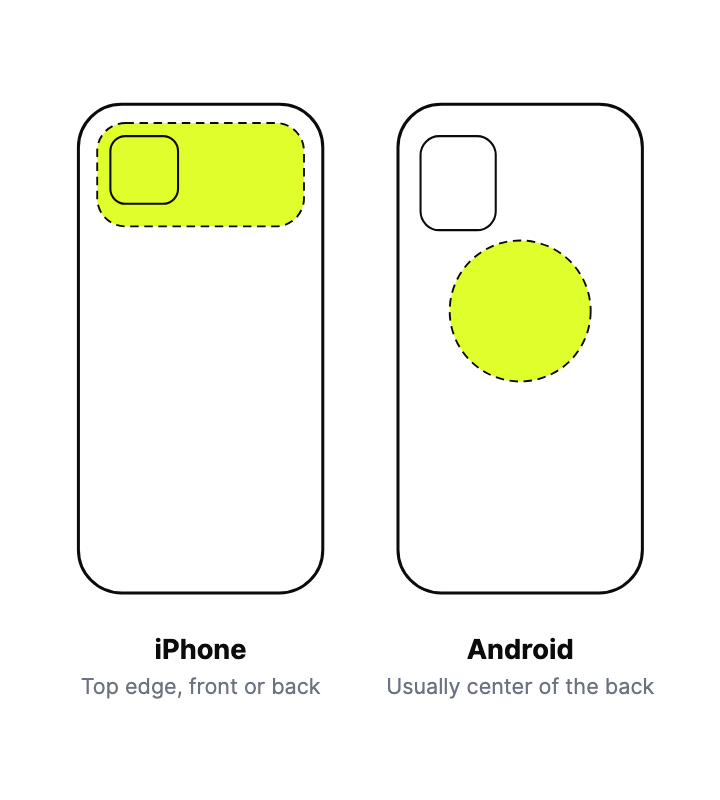
Find the NFC area on your phone
Hold this part of the phone against the NFC mark on the lock.
The position varies by phone model. If nothing happens, move the phone slowly over the NFC mark to find the best spot, then hold it still.
Android: turn on NFC. Open Settings and search for NFC. iPhone has NFC on by default.
EliteLock App
Install and sign in
Scan the code for your phone, or search for EliteLock in the App Store or Google Play.


- 01
Register
New users tap REGISTER AN ACCOUNT and register with an email address.
- 02
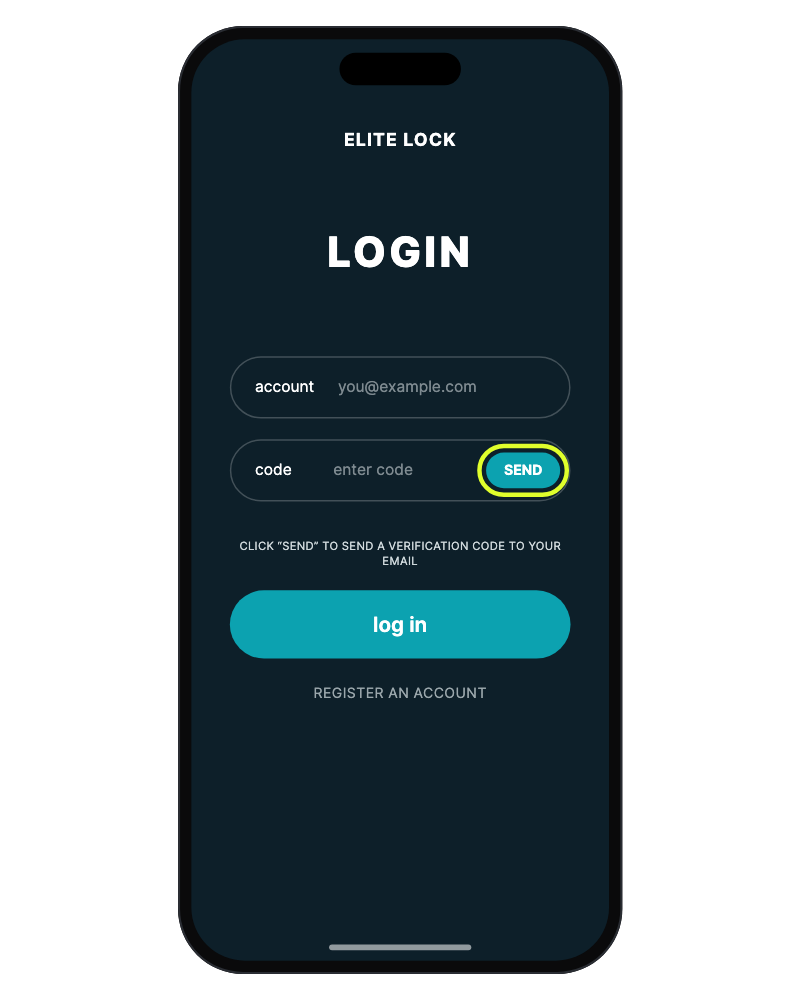
Request a code
Enter your email and tap SEND. A verification code is sent to your inbox.
- 03
Sign in
Enter the code and tap LOG IN. Your units appear in the lock list.
For site operators
Bind a new padlock
Binding links the padlock to a storage unit. It is done once, by an administrator, with the lock beside the phone.
 01
01Open your account
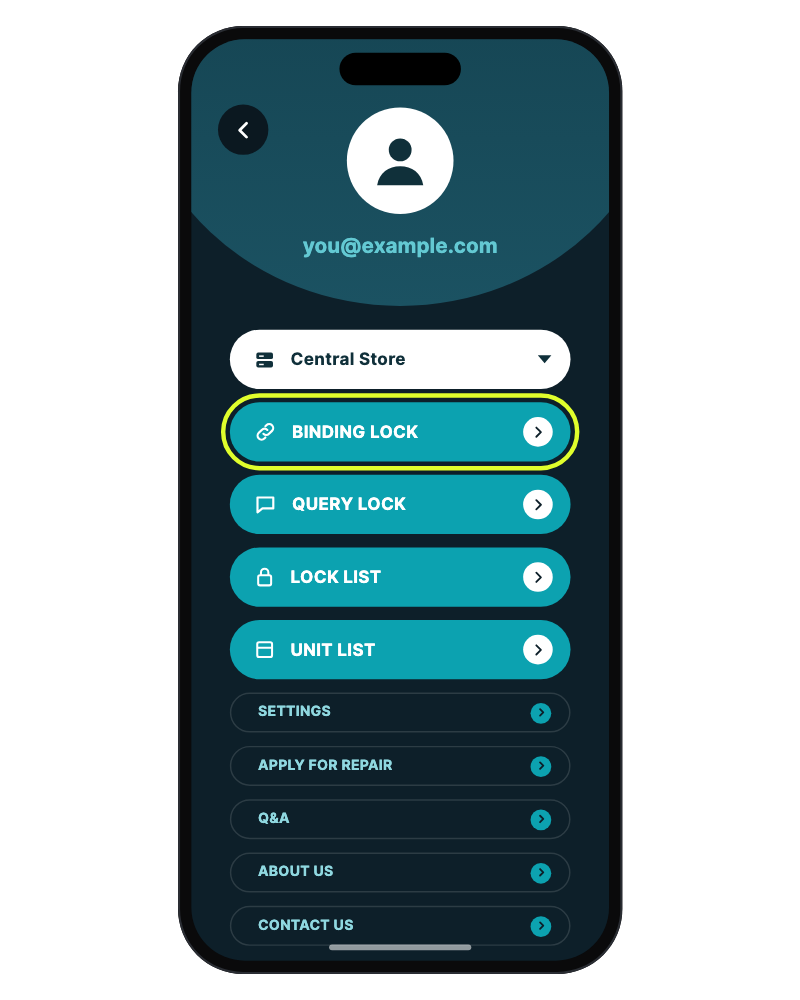
Tap MY ACCOUNT at the bottom of the lock list. Select the store, then tap BINDING LOCK.
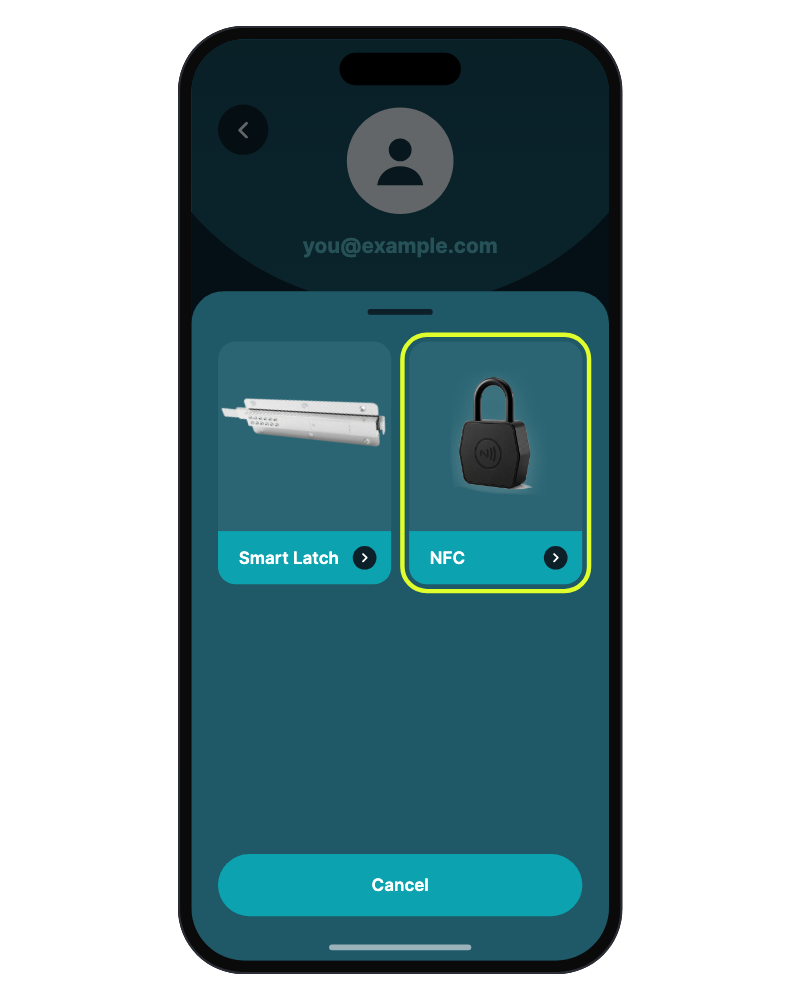 02
02Choose the lock type
Select NFC.
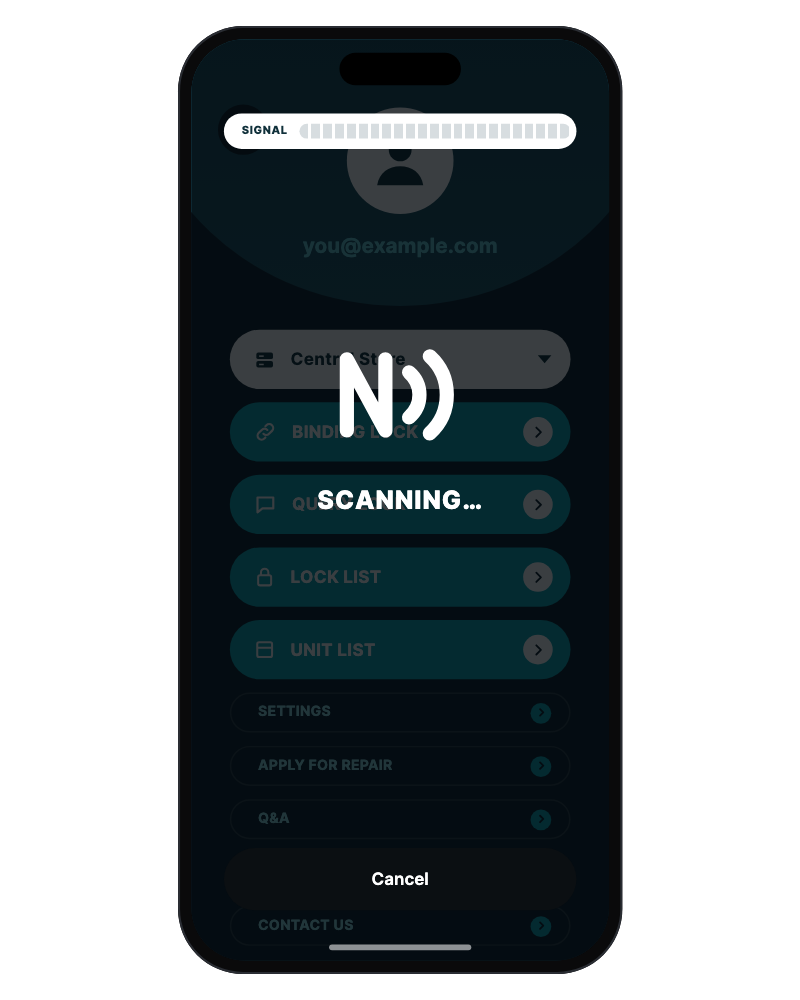 03
03Read the lock
When SCANNING… appears, hold the phone’s NFC area on the NFC mark. Keep still until the device ID is read.
For site operators
Assign the unit
After the device ID is read, assign the lock to the storage unit it will be fitted to.
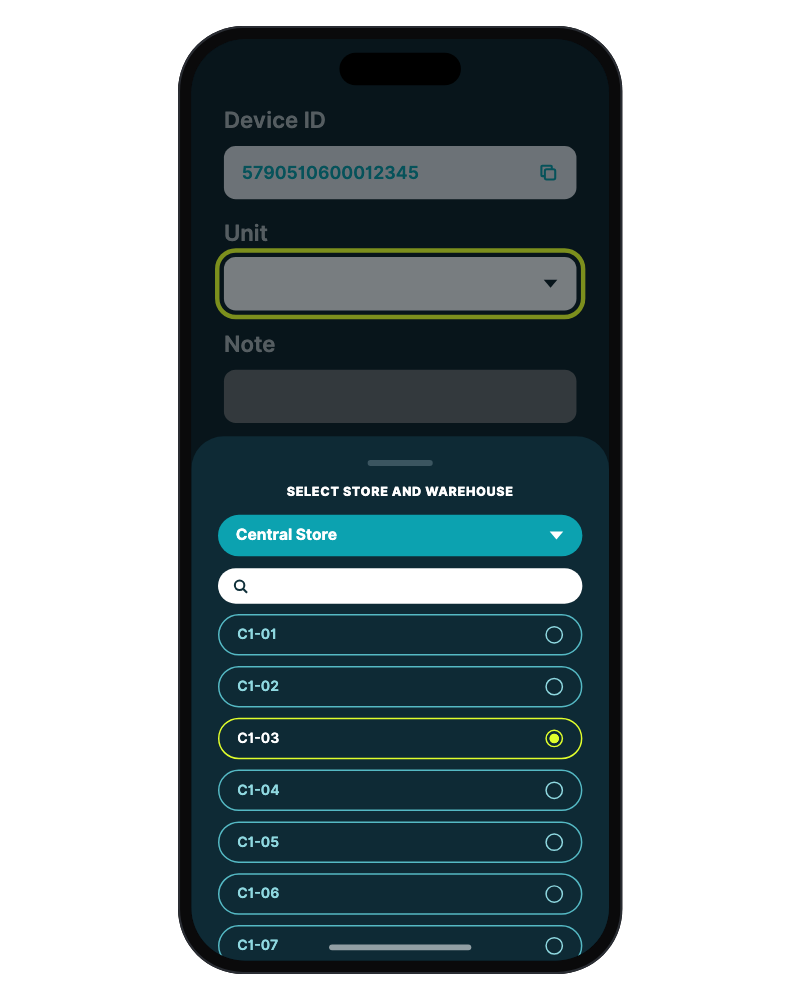 04
04Select the unit
Tap Unit, choose the store and the unit, add a note if needed, then complete the prompts. Check the unit number before you confirm.
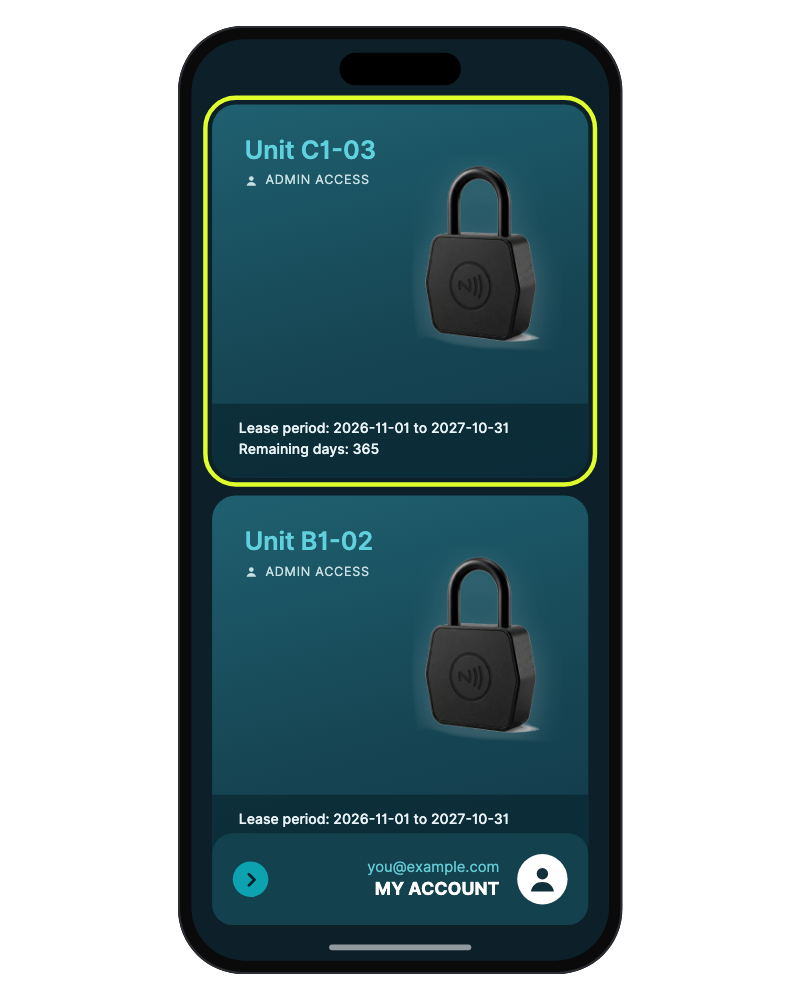 05
05Check the result
The unit appears in the lock list with your access level. Fit the lock to that unit’s door only.
Unlock
Open the padlock
You need an account with access to the unit. If your unit is not in the lock list, contact the site operator.
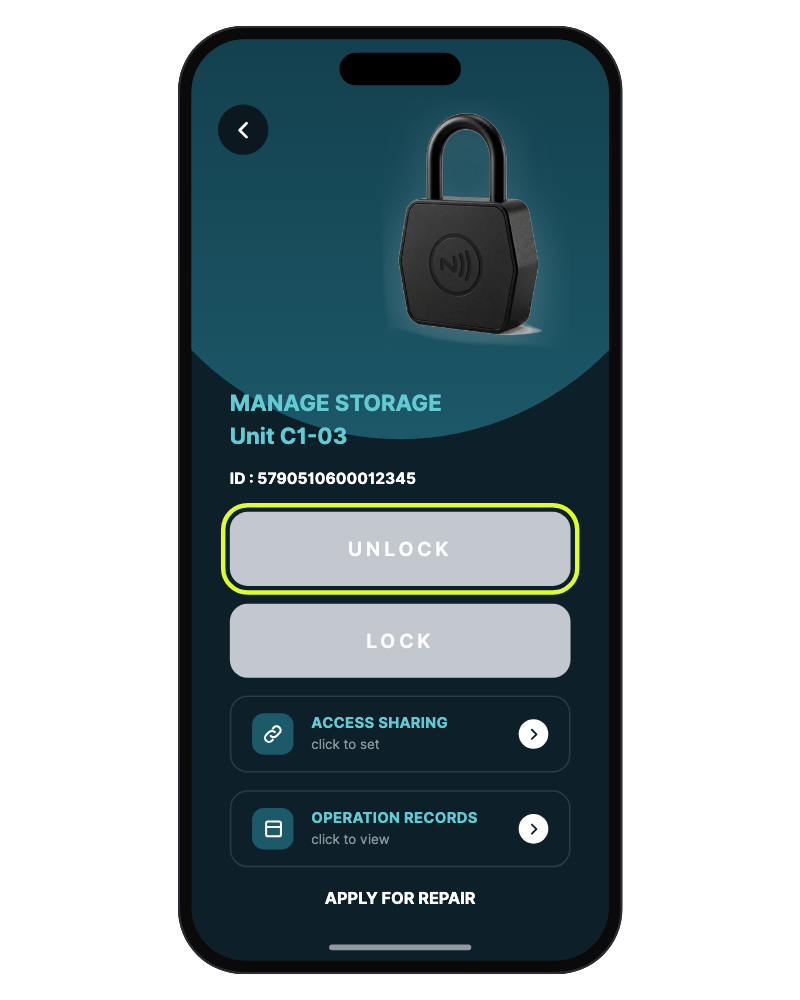 01
01Select your unit
Open EliteLock and tap your unit in the lock list. Tap UNLOCK.
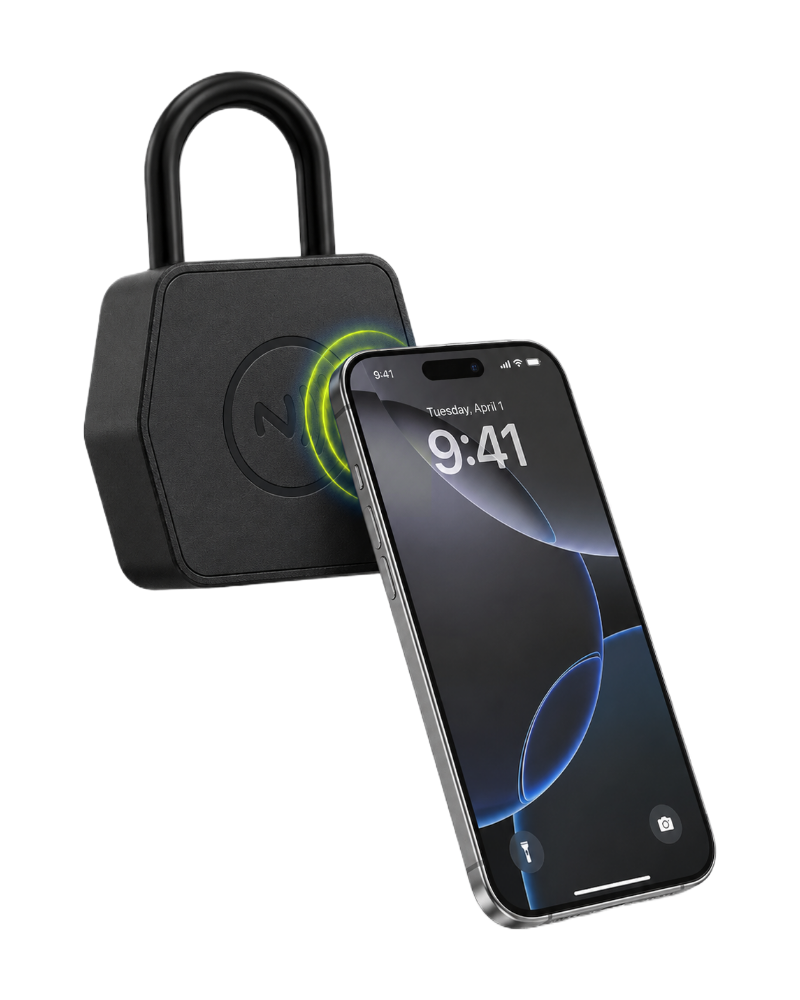 02
02Hold the phone at the lock
When the scan prompt appears, place the phone’s NFC area flat on the NFC mark. Keep it still until the App confirms.
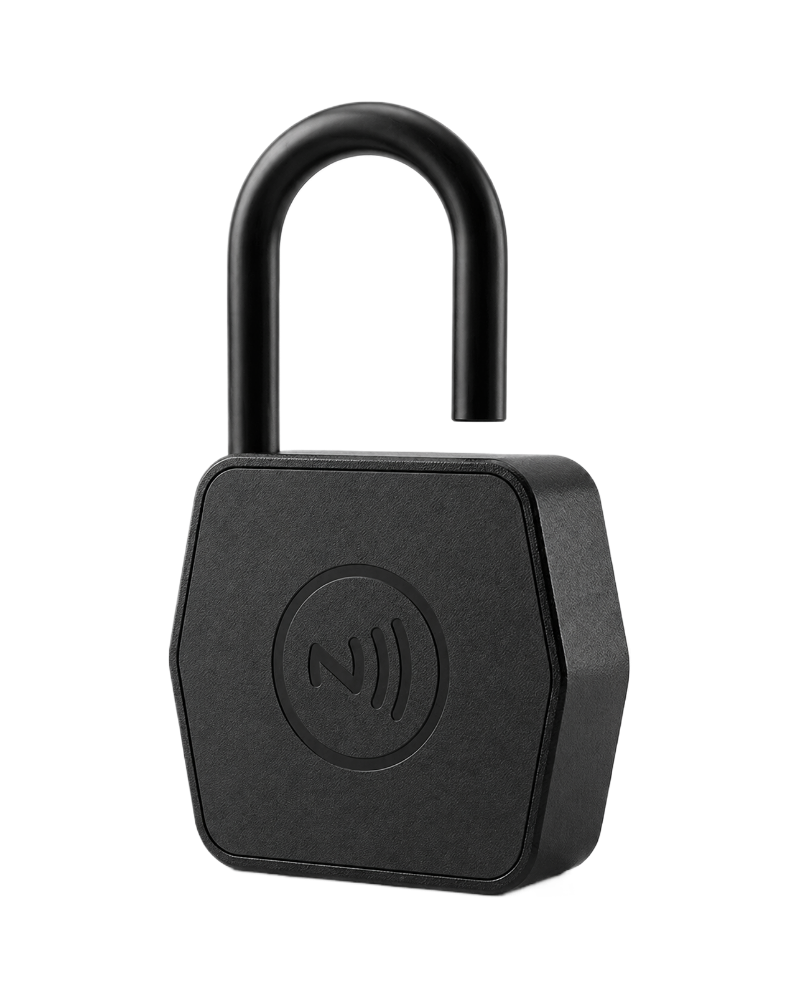 03
03Open the shackle
Pull the shackle up and remove the lock from the hasp. The unlock is recorded automatically.
Lock
Close and confirm
Close the shackle first, then confirm with the App so the lock and the record agree.
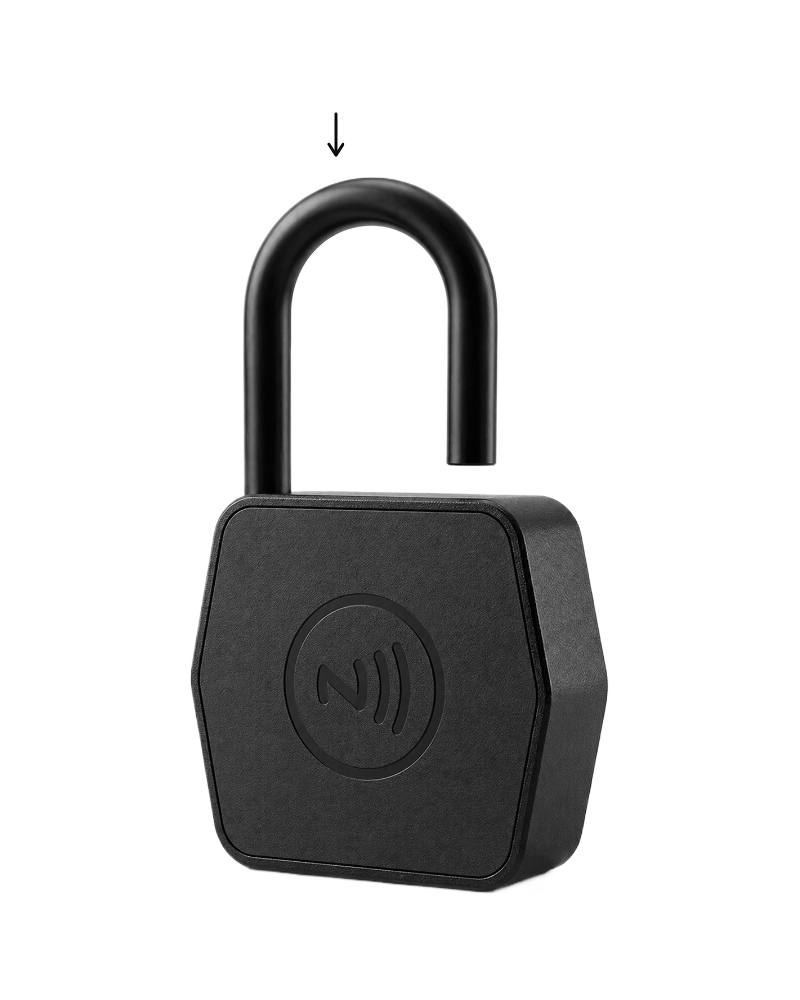 01
01Close the shackle
Close the door, pass the shackle through the hasp and push it down until it is fully seated.
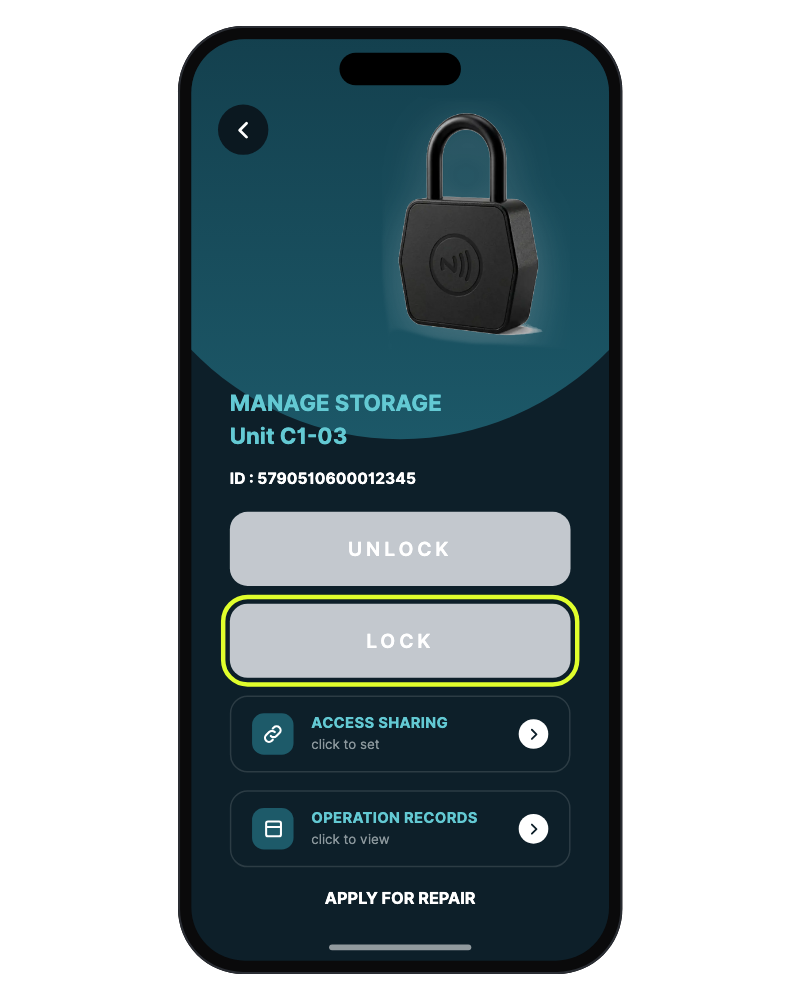 02
02Confirm in the App
Tap LOCK, then hold the phone’s NFC area on the NFC mark until the App confirms.
- 03
Check the lock
Gently pull the shackle to check that it is secured before you leave.
Lock page
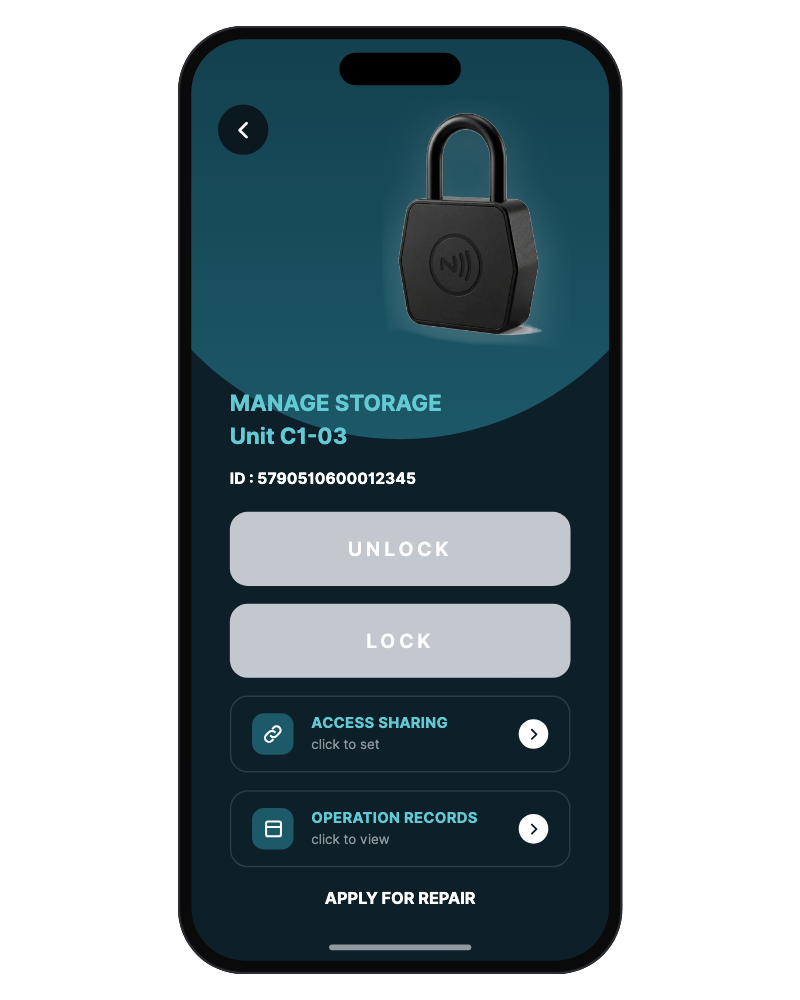
Manage your unit
Tap a unit in the lock list to open its lock page.
- UNLOCK
- Opens the lock. See Open the padlock.
- LOCK
- Confirms the lock is closed. See Close and confirm.
- ACCESS SHARING
- Sets up access to this unit for other users.
- OPERATION RECORDS
- Shows the history of operations on this lock.
- APPLY FOR REPAIR
- Reports a fault on this lock to the operator.
Access follows your rental agreement. Access starts and ends on the dates set by the site operator. The lock list shows the lease period and the remaining days.
Mechanical key
Open without the App
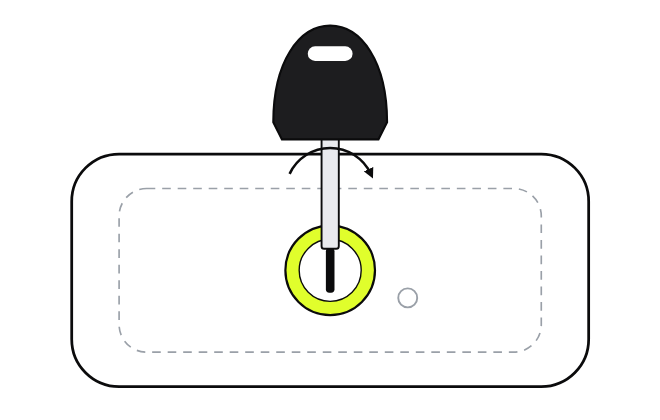
Use the mechanical key only when NFC access is not possible. The key cylinder is behind a cover on the bottom of the lock. You need a hex key, which is not supplied.
For site operators
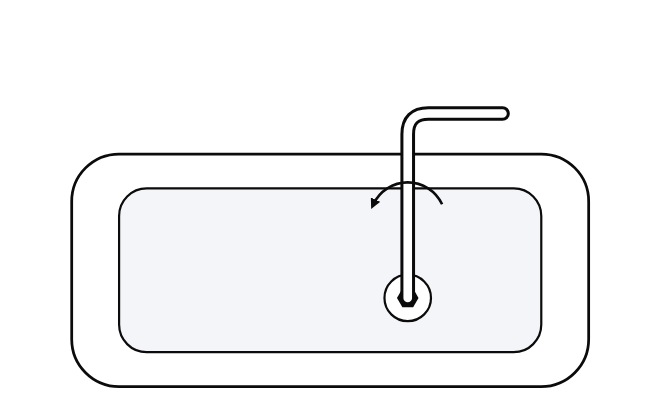 01
01Remove the screw
Turn the lock over. Undo the screw on the bottom cover with a hex key (not supplied).
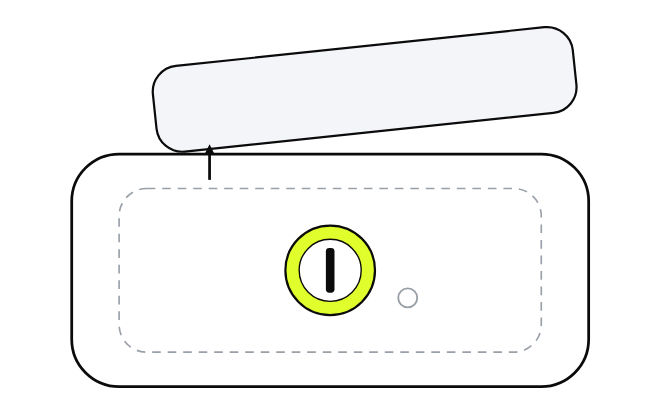 02
02Remove the cover
Lift off the cover to expose the key cylinder. Keep the screw safe.
 03
03Unlock with the key
Insert the mechanical key fully and turn it to release the shackle.
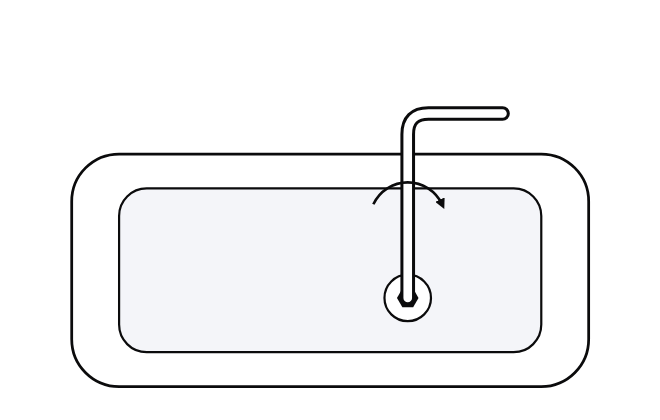 04
04Refit the cover
Remove the key, refit the cover and tighten the screw. Do not overtighten.
Troubleshooting
If something goes wrong
No NFC response
On Android, check that NFC is on. Move the phone slowly over the NFC mark to find the best position, then hold it still. Remove a thick or metal case.
Scan stops before it finishes
The phone moved away during the operation. Tap the button again and keep the phone flat on the NFC mark until the App confirms.
Unit not in the lock list
Check that you signed in with the email registered with the site operator. Ask the operator to check your access.
Access denied
Your access may have expired or been changed. Contact the site operator.
LOCK is not confirmed
Push the shackle down until it is fully seated, then tap LOCK and scan again.
Phone battery is flat
The lock is powered by the phone. Charge the phone, use another authorized phone, or ask the operator for key access.
Lock does not open
Use APPLY FOR REPAIR on the lock page, or report the unit number and the App message to the site operator.
Care and safety
Look after the lock
- 01
Keep the NFC area clear
Keep the front face clean. Do not paint it or cover it with stickers, labels or metal plates.
- 02
Keep the bottom cover fitted
The cover protects the key cylinder from dust and water. Refit it and tighten the screw after every key access.
- 03
Do not force the lock
Avoid impact, levering and forced operation. Do not dismantle the lock beyond the bottom cover.
- 04
Clean gently
Wipe with a soft damp cloth. Do not use solvents or abrasive cleaners.
- 05
Use it within range
Operate the lock between −25 °C and +70 °C.
- 06
Protect keys and account
Keep mechanical keys with the site operator. Do not share your sign-in code. Report a lost phone to the operator.
Questions
Frequently asked
No. The phone powers the lock through NFC during each operation. There is nothing to replace or charge.
Printable manual
Keep a copy at the counter
The same manual as a 16-page A5 booklet, in colour or in black and white for office printers.
App screens shown in this manual may differ from your App version. Specifications are subject to change without notice.